
Introduction
Have you ever had guests ask for your WiFi password and then struggle to type a long combination of letters, numbers, and symbols correctly?
It happens in homes, offices, restaurants, hotels, clinics, and coffee shops every day.
A WiFi QR code solves this problem instantly. Instead of typing a password manually, users simply scan the QR code with their phone camera and connect automatically.
No typing. No mistakes. No repeating your password over and over again.
With the CodePrints WiFi QR Code Generator, you can create a secure WiFi QR code in seconds and download it for free without registration or watermarks.
What is a WiFi QR Code?
A WiFi QR code stores your wireless network information, including:
- WiFi Network Name (SSID)
- Password
- Security Type (WPA, WPA2, WPA3, or Open Network)
When someone scans the QR code, their device automatically fills in the details and connects to the network automatically.
This means no typing, no spelling mistakes, and no frustration for your guests or customers.
Why Use a WiFi QR Code?
- No need to type long passwords.
- Reduces connection errors.
- Provides a better customer experience.
- Works on most modern smartphones.
- Perfect for homes and businesses.
Many cafés, offices, hotels, and waiting areas now use WiFi QR codes because they save time for both staff and visitors.
How to Create a WiFi QR Code
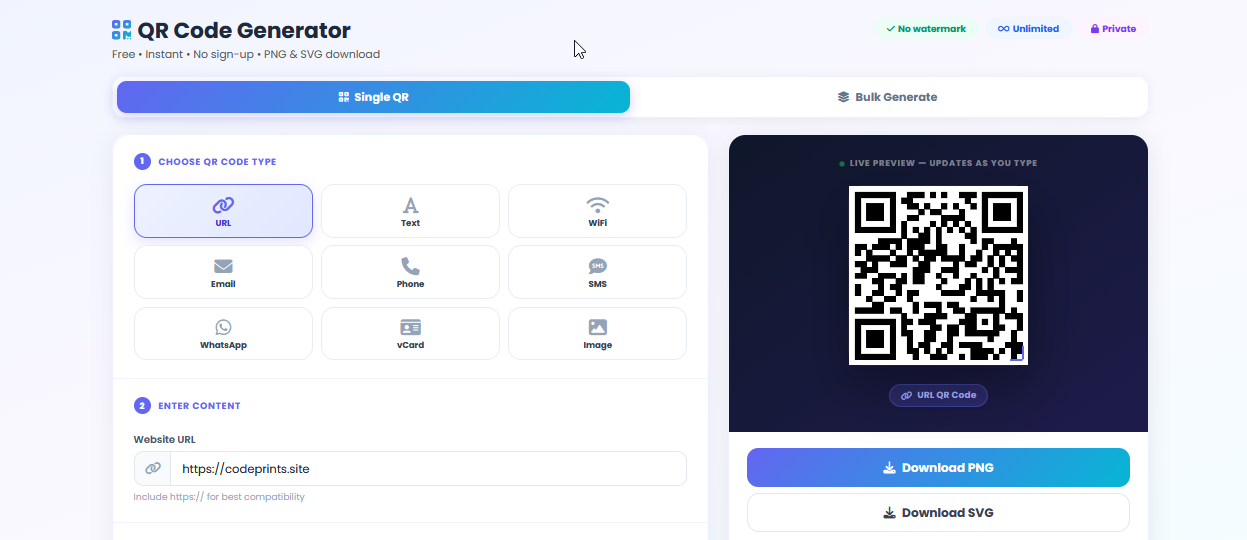
Step 1: Select the WiFi QR Type
Open the generator and choose the WiFi option from the available QR code types.
This tells the generator that you want to create a QR code specifically for wireless network access.
Step 2: Enter Your WiFi Details
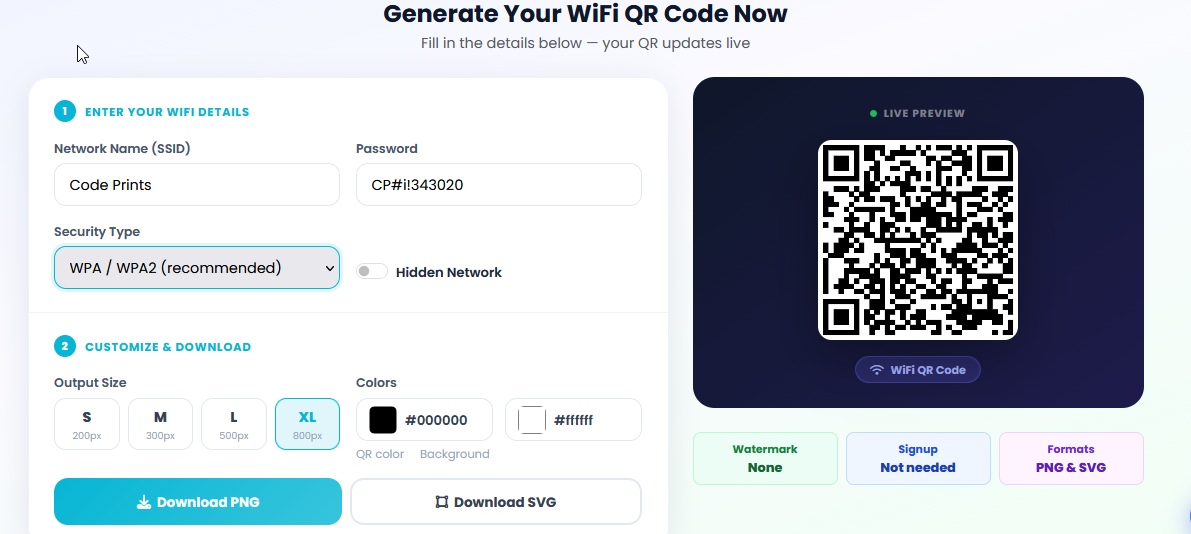
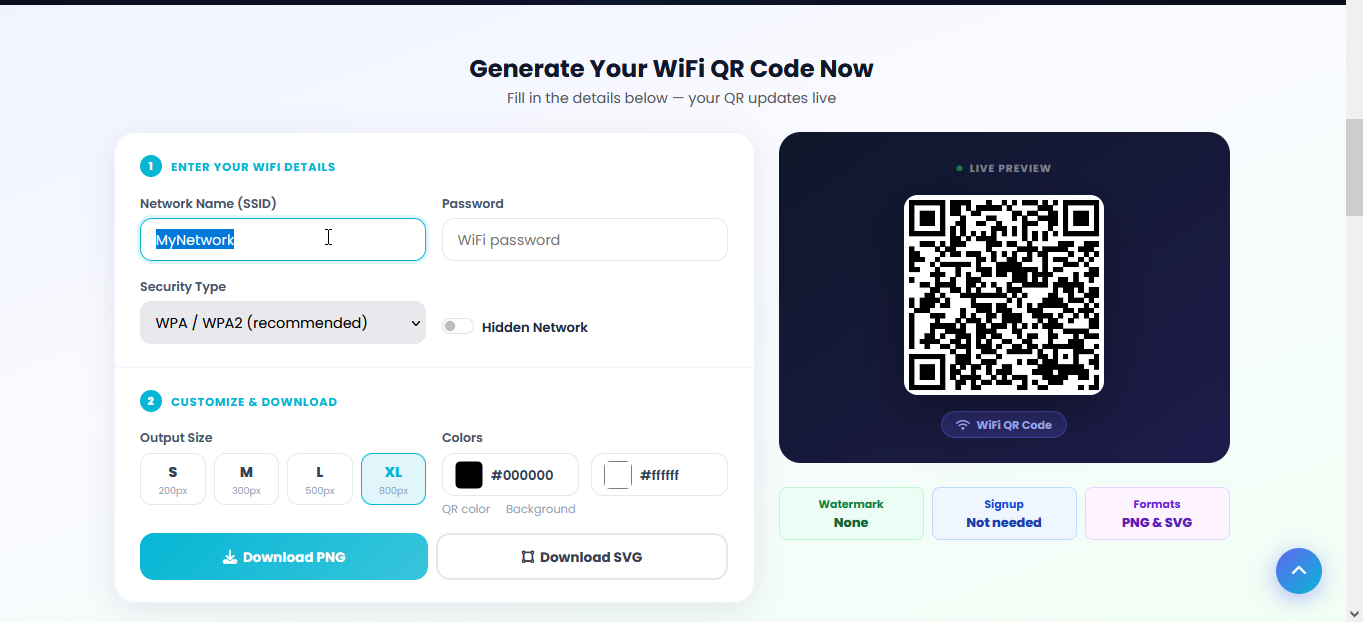
Enter the information required to connect to your network:
- WiFi Name (SSID)
- Password
- Security Type
Make sure the details are correct because users will connect using this information.
Step 3: Customize the Design
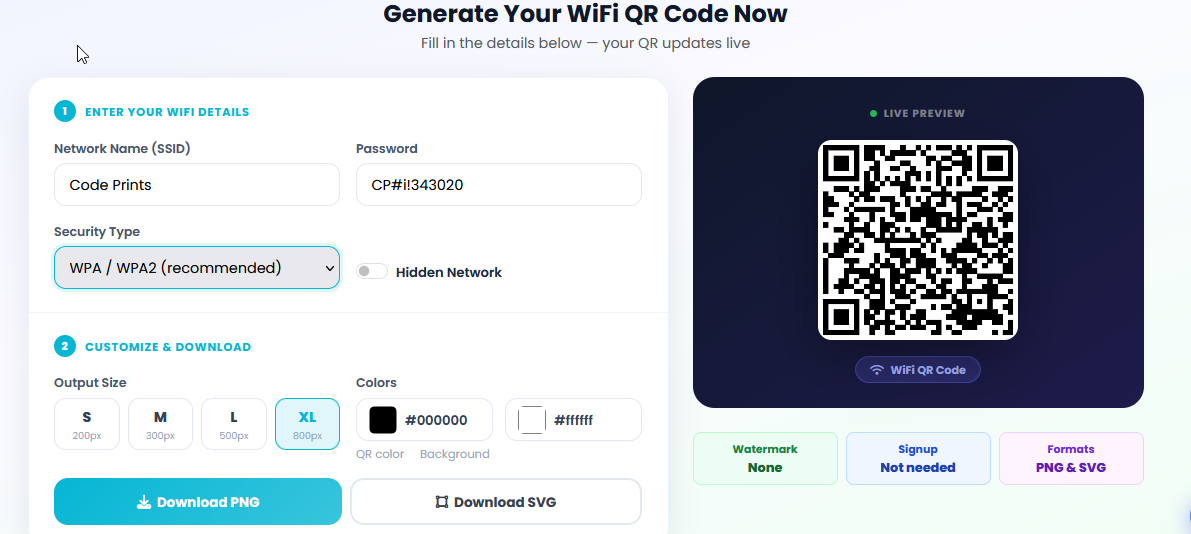
You can customize the QR code colors, size, and margins to match your branding or interior design.
Many businesses use brand colors so the QR code blends naturally with menus, table cards, posters, and marketing materials.
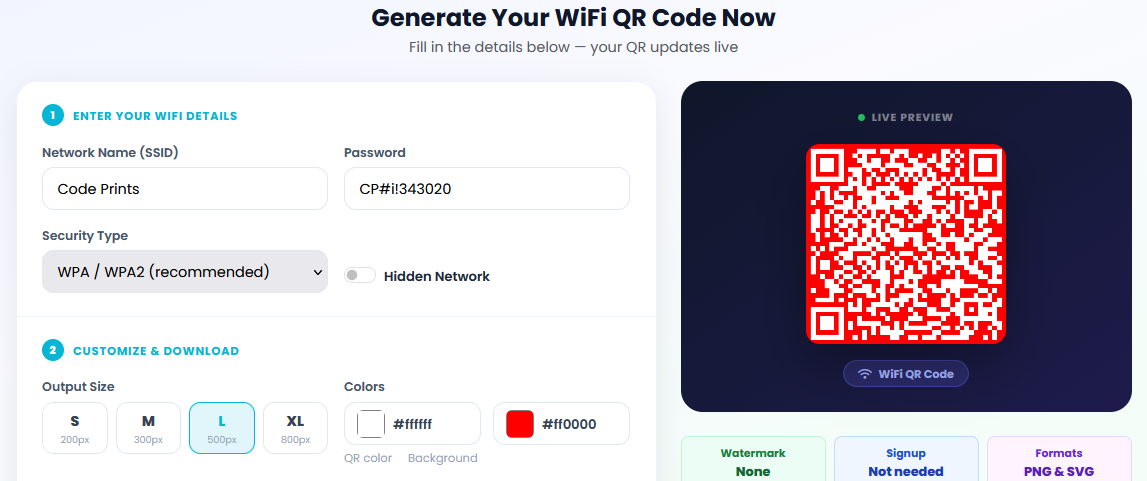
Step 4: Preview Your QR Code
The live preview updates instantly as you make changes.
This allows you to check the design and confirm everything looks correct before downloading.
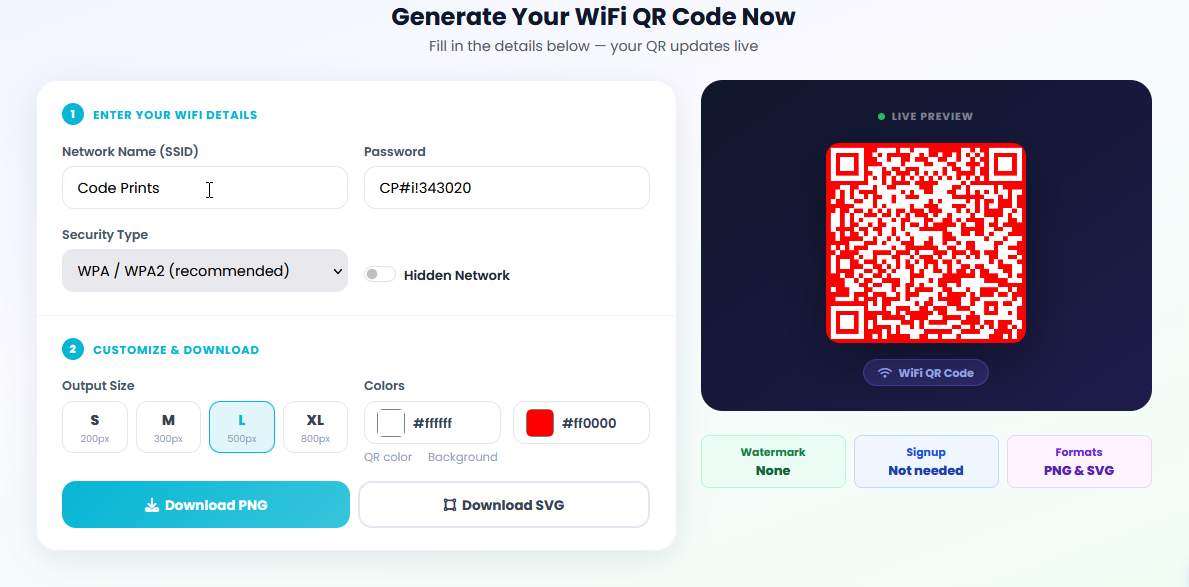
Step 5: Download the QR Code
Once you're happy with the result, download your WiFi QR code instantly.
You can choose between:
- PNG for websites, social media, and everyday use.
- SVG for printing, banners, posters, and large displays.
Print it and place it anywhere visitors need internet access.

Best Places to Use WiFi QR Codes
- Restaurants and Cafés
- Hotels and Guest Houses
- Reception Areas
- Meeting Rooms
- Homes and Apartments
- Retail Stores
- Waiting Areas and Clinics
A simple printed QR code on a table, wall, or reception desk can save countless conversations about WiFi passwords.
Frequently Asked Questions
Is it safe to use a WiFi QR code?
Yes. The QR code only contains the information required to connect to your network.
Can I change my WiFi password later?
Yes. If your password changes, simply generate a new QR code using the updated information.
Do iPhone and Android support WiFi QR codes?
Yes. Most modern Android phones and iPhones can scan WiFi QR codes directly using the camera app.
Does the QR code expire?
No. The QR code will continue to work as long as your WiFi details remain the same.
Conclusion
WiFi QR codes save time and make internet access easier for everyone.
Whether you run a restaurant, manage an office, operate a hotel, or simply want an easier way for guests to connect at home, a WiFi QR code is one of the simplest improvements you can make.
Create your free WiFi QR code today and let your visitors connect with a single scan.